Start with the official Windows download, then open a small practice folder. This guide covers installation, sign-in, your first workspace, and basic troubleshooting.
Checked on October 13, 2026. Current official documentation calls the desktop entry point the ChatGPT desktop app, with Codex available inside the app. Older screenshots may show Codex App. Follow the interface in your current version.
1. Download from the official source
Open the official Windows guide and follow its Microsoft Store download link. The subscription advertisement on this website is separate from the software download.
The official guide also provides this Microsoft Store installation command:
winget install --id 9PLM9XGG6VKS -s msstore
If your terminal cannot find winget, use the official download page instead. This introductory desktop workflow does not require installing the CLI, configuring Node.js, or entering an API key.
Our download navigation distinguishes official links from third-party mirrors. Mirror files are provided by a third party; the official documentation remains the source of truth for supported installation methods.
2. Open the app and sign in
Open the installed client and sign in with your own ChatGPT account. Installing the app does not guarantee access to every feature or unlimited usage. Check the actual status shown for your account.
Never send a download website or support contact your password, verification codes, or API key. This independent website does not sign in on your behalf.
3. Choose Codex and a working folder
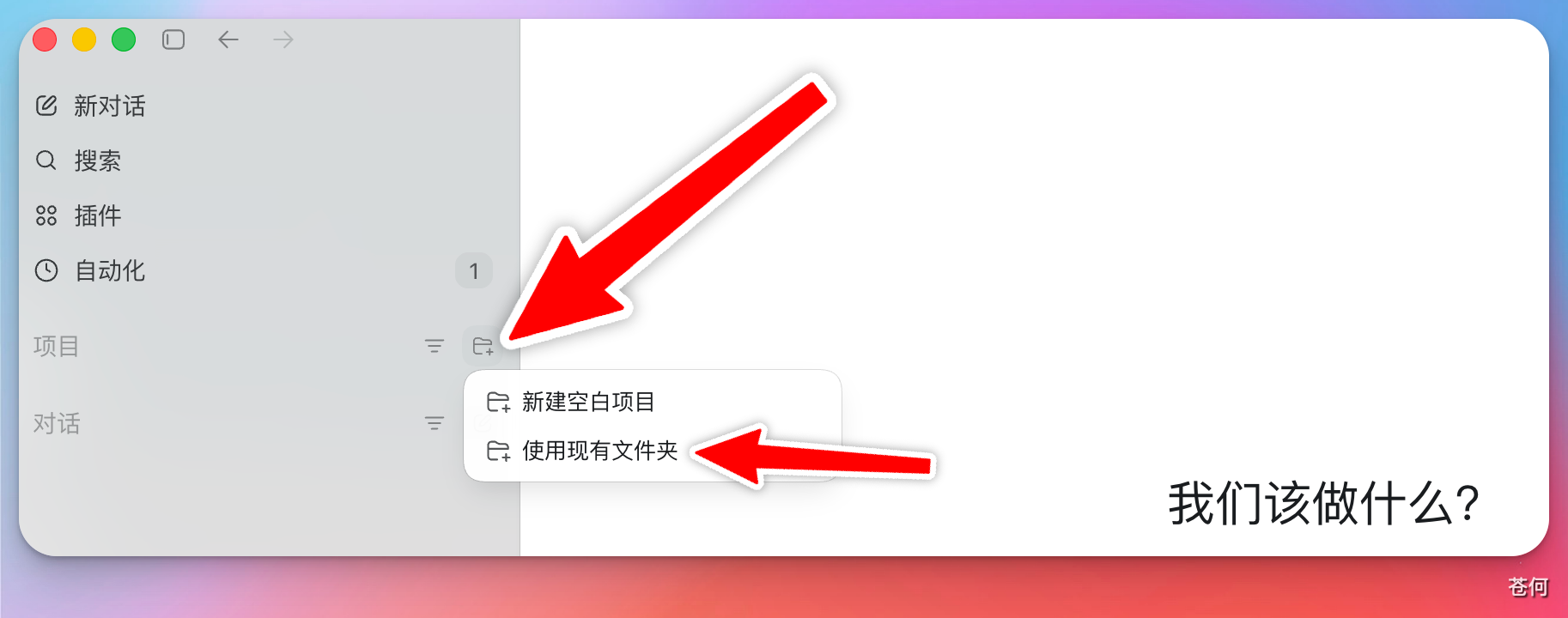
If your client offers a ChatGPT / Codex selector, choose Codex for software projects. Create a practice folder such as Documents/codex-demo, then open it in the app or add it as a project.
An empty folder makes it easier to see which files are created. Check the displayed workspace path before sending a task.
4. Send a small first task
Start by confirming the workspace:
Look at the files in this folder and explain what you understand about the project.
Do not modify any files yet.
Once the folder is correct, follow Your first Codex task to practice describing a task, inspecting the result, making one change, and verifying it.
5. Troubleshoot installation by symptom
| Symptom | Check first | Next step |
|---|---|---|
| Store does not open or installation stalls | Network, Store sign-in, Windows updates, free disk space | Retry the official installation path and record the exact error code |
| Package is not supported | Device architecture, package architecture, current official requirements | Check Settings → System → About and confirm the correct download |
| App opens but Codex is hard to find | Correct client and product selector | Compare the current official quickstart and check for app updates |
| Sign-in does not complete | Browser sign-in completion and return to the app | Read the sign-in troubleshooting section |
Keep the full error message and follow official guidance before changing system security settings.
Installation checklist
- The client opens and is signed in.
- The practice folder is selected.
- Codex can list the files in that folder.
- You know how to send a task and check its actual output.
Continue learning
- Build a small local webpage as your first task
- Installation, sign-in, limits, and output problems
- Full getting-started library (Chinese)
Official references
Compiled by Codex Go, an independent website. The installation command and desktop entry point follow the official Windows guide. Sign-in, workspaces, and product selection follow the official Quickstart.