Start with a small, concrete task. In this exercise you will build a personal reading-list page and complete the full loop: choose a folder, describe the result, open the files, request a change, and check the behavior.
Checked on October 13, 2026. This is a practice exercise designed by Codex Go, not a guarantee of a particular result. Project and preview controls vary by version. Need to install first? Read the Windows installation guide.
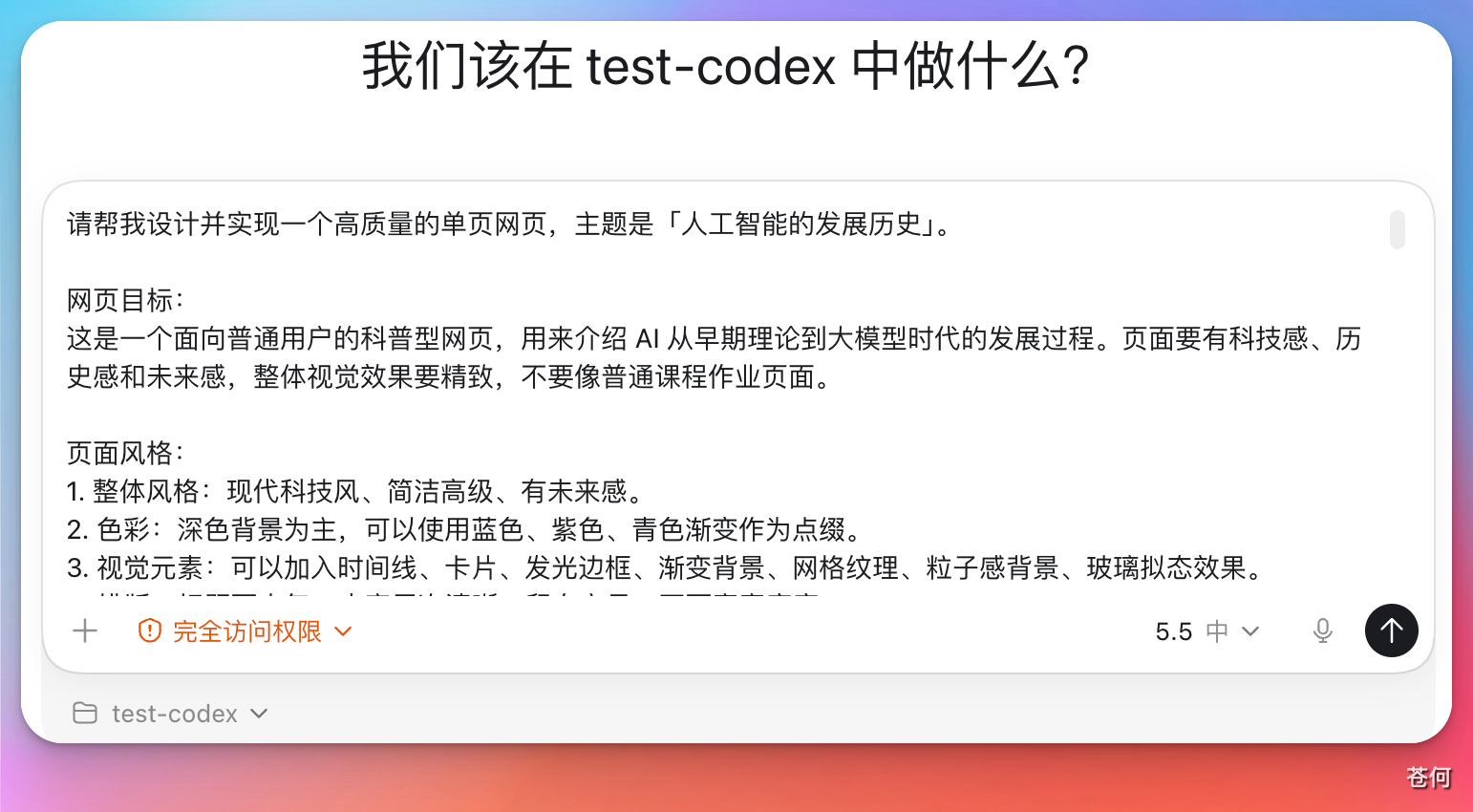
1. Prepare a practice folder
Create an empty codex-demo folder. Select Codex in the desktop client, then open that folder or add it as a project. Confirm that the current task points to this workspace.
If you are working in an existing project, save your current work and define the scope first. Rewriting a complex project is a poor first exercise.
2. Send a complete task description
Use this starting prompt and replace the sample books if you want:
Create a personal reading-list webpage in the current folder.
Use a single index.html file containing the necessary CSS and JavaScript.
Do not connect external services or install dependencies.

Show 3 sample books. Each book has a title, author, and reading status.
Give each book a "Mark as read" button that changes only that book's status to "Read".
Use a clear, light design. Stack the cards vertically on mobile.

When finished, tell me the file location and how to open it.
Check that all 3 buttons update their own cards and explain what you actually verified.
This prompt specifies the page, data, interaction, mobile layout, and acceptance criteria. Avoiding accounts, databases, and external APIs keeps the first task manageable.
3. Watch the scope and feedback
Codex may read files, write files, and run commands. When a permission prompt needs your attention, review the purpose and target directory before deciding.
If it starts adding a server, external account, or paid API, bring the scope back to this exercise:
This task only needs a local static webpage. Keep the single-file approach.
Finish the reading list and mark-as-read interaction first.
Do not add sign-in or cloud storage.
4. Open the actual result
Confirm that index.html exists in the working folder. Follow the opening instructions. Since this exercise uses a single static file, you can usually double-click it to view it in a browser.
Do not judge completion only from a message saying "done". Click the buttons yourself and narrow the browser window to check the layout.
| Check | Expected result |
|---|---|
| File | index.html exists in the workspace |
| Content | 3 cards show a book title, author, and status |
| Buttons | Clicking one book changes only that book's status |
| Mobile layout | Cards stack vertically without clipped text or buttons |
5. Request one specific change at a time
Describe the trigger and result rather than saying "make it look better":
At a window width of 390 pixels, the button in the second book card extends past the right edge.
Adjust the layout so the button is fully visible.
Keep all three books and their click behavior, then check that width again.
For visual problems, attach a screenshot and identify the location. For interaction problems, describe what you clicked, what happened, and what you expected.
6. Make completion reviewable
Finish with this request:
Summarize which files you created or changed, which interactions you actually checked,
and what remains unverified. Do not describe checks you did not run as passing.
Without persistence, refreshing the page resets the reading status. That is expected for this exercise. Saving the status can be your next separate task.
If you get stuck
- No files: check that the task has a workspace and write access.
- Output does not open: confirm the path and capture the error.
- Button does nothing: provide the reproduction steps and actual browser error.
- Usage limit reached: check your account's limit and reset message before sending the same task again.
See Codex troubleshooting for more. Workspace selection, the Codex entry point, and starting tasks follow the official Quickstart.